
Audyssey MultEQ Editor app
D+M GroupMusic & Audio
2.7261.00 Reviews
- Version
- 1.14.0
- Installs
- 50.00K
- Age Rating
- Everyone
Screenshots
Our Review of Audyssey MultEQ Editor app
 Analysis by Appyee
Before installing Audyssey MultEQ Editor, I’d check one practical thing: whether the AV receiver I plan to use supports Audyssey MultEQ and works with the app. This isn’t a general-purpose equalizer for phone speakers or headphones. Its role is to help adjust a compatible Denon or Marantz home-theater receiver, so it makes sense when you already have that system and want more say over its room correction.
The app is in the music and audio category, is developed by D+M Group, and costs $19.99. That price changes the decision: I’d treat it as a specialist purchase, not a casual sound-effects app. Its 2.7 average from around 1,500 ratings suggests experiences are mixed, while more than 50,000 installs show that there is a specific audience for it. The app is rated for Everyone, and version 1.14.0 runs on Android 5.0 or later.
What to expect from a receiver-focused tool
My main expectation would be a more hands-on route into receiver calibration, rather than a quick way to make every song sound louder or brighter. The value is in being able to review and adjust how your home system is set up for its room. If you don’t own a compatible receiver, the app is unlikely to be useful; if you do, it offers a way to work with the calibration instead of treating the receiver’s initial result as untouchable.
That distinction matters when comparing it with everyday alternatives. A basic equalizer usually changes sound at the playback device, while a receiver’s own setup controls are reached through its menus. This app is aimed at the receiver-calibration workflow, which can be more relevant to a room with several speakers than a phone-wide tone control. It is not automatically the better choice for everyone: if you only listen on earbuds or want a simple preset, a standard music-player equalizer is the more direct option.
Getting Started: First Impressions
First off, setting up the Audyssey MultEQ Editor app is pretty straightforward. You’ll need a compatible Audyssey-equipped AV receiver, which is honestly a breeze to connect. The app itself is available on both Android and iOS, so pretty much anyone with a smartphone can jump in. The user interface is clean and intuitive, sporting a minimalist design that doesn’t overwhelm you with too many options right off the bat.
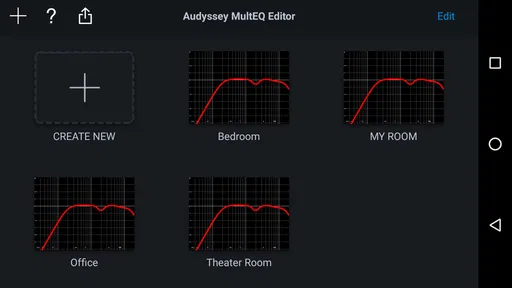
Once you’re connected, the app presents you with a friendly dashboard where you can start your audio journey. It's designed to make you feel at home, even if you're not an audio expert. The app takes you step by step through the process, which is great because, let's face it, not all of us are sound engineers.
Getting ready for your first calibration
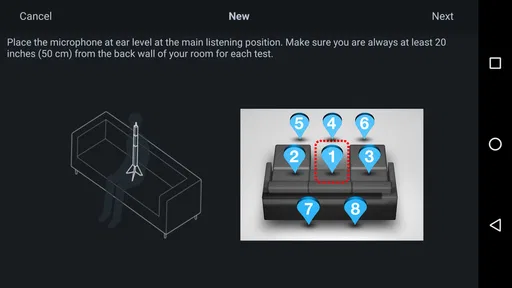
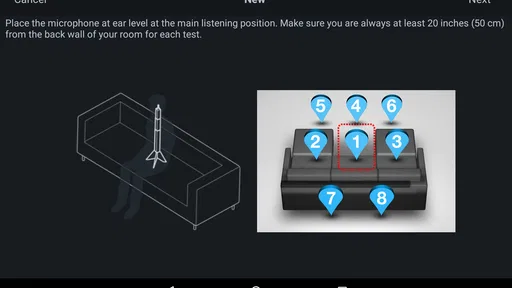
I’d make the first attempt on a quiet stretch of time rather than between errands. Room correction depends on a set of listening-position measurements, so constant movement, a television playing in the background, or people chatting nearby can make it harder to judge the result. I’d also settle on the seats that matter most before starting: a setup intended for one main chair is a different compromise from one meant to serve a whole sofa.
Before opening the app, it helps to know the receiver’s network connection is working and that the phone is on the same home network. If the app does not find the receiver, I’d check those basics first and confirm compatibility instead of repeatedly changing audio settings. That simple order keeps a connection problem from being mistaken for a calibration problem.
For a first run, I would resist the urge to change several things at once. Let the receiver complete its calibration workflow, listen to a familiar scene, then make one deliberate adjustment if something feels off. That gives you a useful reference point and makes it easier to tell whether a change helped or merely made the sound different.
Features That Make a Difference
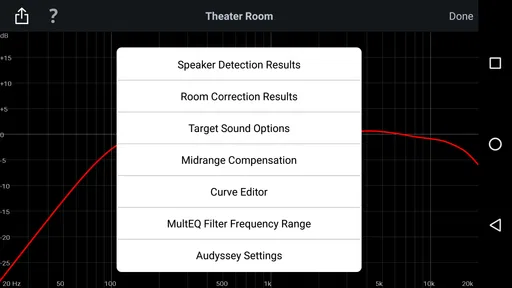
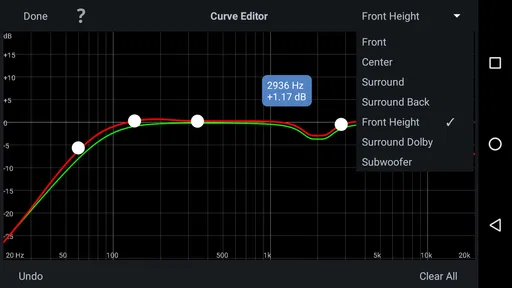
What really sets this app apart is its ability to give you granular control over your audio settings. You can fine-tune your system’s sound profile to match the acoustics of your room, which is a game-changer. The app lets you adjust frequency curves, which sounds technical, but it’s as simple as dragging your finger on the screen to shape the sound to your liking.
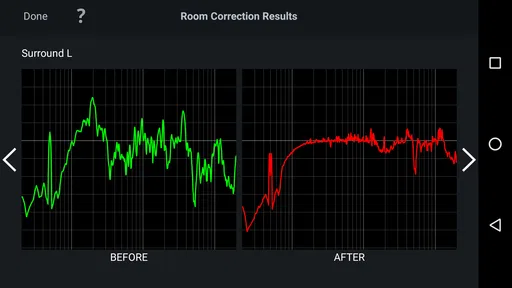
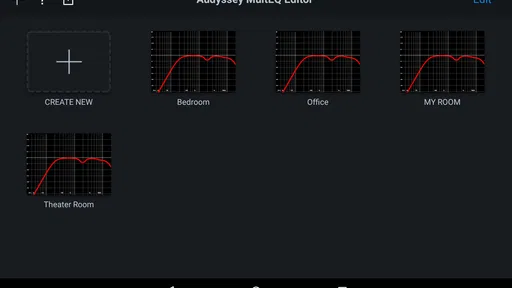
There’s also the option to save different profiles, so whether you're watching a movie, listening to jazz, or hosting a party, you can easily switch to the best sound setup for the occasion. And for those who love a good visual, the app provides real-time feedback with dynamic graphs showing how your adjustments affect the sound.
From the first run to a meaningful result
A realistic first success is not a dramatic “before and after” transformation. It may be dialogue that seems easier to follow from your usual seat, or a music session that feels less uneven in the room. I’d use a scene or track I already know well, keep the listening volume comparable, and pay attention to one issue at a time. If the change does not help, returning to the previous profile is more useful than piling on extra adjustments.
One less obvious trade-off is that a profile is tied to the room and listening positions it was made for. Moving a sofa, changing the speaker layout, or making a different seat the priority can make an old calibration less representative. I’d save a profile with a clear name that reminds me what it was for, rather than assuming one setup is ideal for every arrangement.
Those saved profiles can also support a practical household routine. For example, I might keep a baseline for everyday television and another version with a modest adjustment for late-night viewing, then compare them rather than rebuilding the whole calibration. The point is not to create a library of tweaks; it is to preserve a known-good starting point so experimentation stays reversible.
In-Depth Audio Tuning
The Audyssey MultEQ Editor even comes with an Auto Setup feature, which is perfect for newbies. It measures the room’s acoustics using your device’s microphone and suggests the best settings. But if you’re a control freak like me, you’ll appreciate the Manual Tuning option. This is where you can really geek out on the details and customize everything to your heart’s content.
For a newcomer, I’d regard the automatic result as a baseline, not a verdict on what must sound best. The manual controls are most useful when you have a specific reason to intervene—for instance, a tonal balance that bothers you across several familiar recordings. Making small changes and comparing them against the saved baseline helps avoid the common trap of adjusting by memory after too much time has passed.
There is also a difference between seeing a curve and hearing an improvement. A graph can show that a setting changed, but it cannot decide whether the new balance suits your room, speakers, and preferences. I’d avoid chasing a perfectly smooth-looking display; the best choice is the one that works for the listening you actually do, not simply the one that looks most polished on a screen.
One useful workflow is to complete the initial process, save the result, then make a single small manual change and listen again. If the change is hard to identify or improves one recording while making several others less enjoyable, go back to the baseline. That keeps the app approachable even when its controls invite deeper experimentation.
Common confusion and sensible limits
The first point that can confuse new users is the boundary between the phone and the receiver. This is not an app that independently calibrates any audio equipment it can find; its usefulness depends on a compatible Audyssey-equipped receiver. I would check the exact receiver model before paying, especially if the system was bought second-hand or its setup has been handled by someone else.
It is also easy to expect room correction to solve every sound problem. Calibration cannot make a poor speaker placement disappear, and a setting cannot compensate for every seating or room-layout issue. If one seat sounds much worse than another, I’d first consider whether the speaker positions and the listening area suit the people using the room, then decide whether fine-tuning is likely to help.
For a family movie night, the useful question is often not “Which curve is technically perfect?” but “Can everyone hear dialogue from their seat without making the whole mix unpleasant?” That may call for a compromise profile rather than tuning solely for the main chair. A dedicated music listener who sits in one position may reasonably make a different choice.
Another limitation is the time and attention the process asks of you. Someone who wants to open a music app and press play may find receiver calibration too involved for the payoff. If you enjoy methodical listening and want control over a home-theater setup, that effort is easier to justify; if not, the receiver’s built-in setup or a simpler playback equalizer may be enough.
The Community Aspect
Another cool aspect is how the app connects you to a community of users. You can share your customized profiles and get tips from other audio enthusiasts. This creates a sense of camaraderie and provides a treasure trove of sound setups to try out. It’s like crowdsourcing the best audio experience!
When looking for advice from other owners, I’d treat someone else’s settings as a starting point for questions rather than a preset guaranteed to work in my room. Their receiver, speakers, layout, and preferred listening position may differ from mine. A recommendation is most helpful when it explains the listening goal behind the change; copying a curve without that context can create more confusion than progress.
That is also why I would keep my own notes outside the act of tweaking: which profile I preferred, what I changed, and what I was listening for. Even a brief reminder makes it easier to undo an experiment later. It is a small habit, but it turns trial and error into a controlled comparison rather than a sequence of settings you can no longer identify.
Who should pay, and what to do next
I’d recommend this to someone who already owns a compatible receiver, enjoys shaping a home theater’s sound, and is willing to compare changes carefully. The price is easier to defend when the app helps you understand and adjust a system you use often. For a casual listener with no compatible receiver—or someone who only wants a quick phone equalizer—the purchase is hard to justify.
After a first successful calibration, I’d live with the result for a few days before making more changes. Use familiar films, dialogue-heavy programs, and music you know well; different material can expose different preferences. If you do adjust a curve, make one change at a time and preserve the prior version so you can return to it without guessing.
Final Thoughts: Is It Worth It?
So, is the Audyssey MultEQ Editor app worth your time and possibly your hard-earned cash? Absolutely. For anyone serious about achieving the best sound experience from their home setup, this app is a must-have. It provides a level of control and customization that would be hard to achieve manually.
In a nutshell, if you’re looking to elevate your audio game to the next level, this app is a no-brainer. Whether you're a newbie or an audio aficionado, the Audyssey MultEQ Editor app gives you the tools to make your sound system sing. So go ahead, give it a try—you might just find yourself wondering how you ever lived without it!
Verdict
Strengths of Audyssey MultEQ Editor app
- Customizes sound for specific room acoustics.
- Intuitive interface for easy navigation.
- Wide range of sound adjustment options.
- Real-time sound calibration feedback.
- Supports multiple user profiles.
Limitations of Audyssey MultEQ Editor app
- Requires compatible hardware to function.
- Initial setup can be time-consuming.
- Limited to specific AV receiver models.
- App may occasionally lag or crash.
- Paid app with no free trial available.
Similar Picks in This Category
View All
YouTube Music
Google LLC4.4

Samsung Music
Samsung Electronics Co., Ltd.3.8

Spotify: Music and Podcasts
Spotify AB4.3

JioSaavn - Music & Podcasts
Saavn Media Limited4.3

Lark Player:Music Player & MP3
Lark Player Studio - Music, MP3 & Video Player4.6

StarMaker: Sing Karaoke Songs
SKYWORK AI PTE. LTD.4.3
Frequently Asked Questions
What is the Audyssey MultEQ Editor app used for?
The Audyssey MultEQ Editor app is designed to optimize your home audio system by allowing you to customize and fine-tune your speaker setup. It works in conjunction with compatible AV receivers to provide precise calibration using Audyssey's advanced algorithms, enhancing sound quality for a more immersive listening experience.
Is the Audyssey MultEQ Editor app compatible with my AV receiver?
Before downloading, ensure your AV receiver is compatible with the Audyssey MultEQ Editor app. Typically, mid-range to high-end models from brands like Denon and Marantz support this app. Check your receiver's specifications or the manufacturer's website to confirm compatibility and maximize the app's features.
How do I connect the Audyssey MultEQ Editor app to my receiver?
Connecting the app to your receiver requires both devices to be on the same Wi-Fi network. Once connected, the app will guide you through the setup process, allowing you to adjust and save custom sound profiles. Make sure your receiver is updated with the latest firmware for seamless connection.
What customization options does the Audyssey MultEQ Editor app offer?
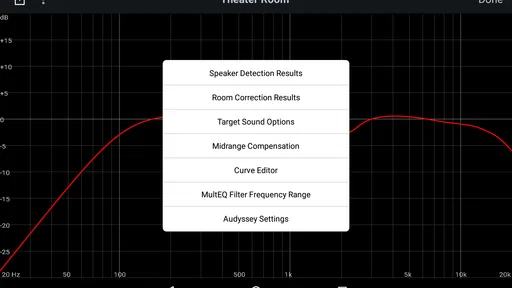
The app provides extensive customization options, including adjusting EQ curves, setting target sound profiles, and modifying crossover frequencies. Users can also view room measurement data, offering insights into acoustic performance. These tools allow for a tailored audio experience that meets personal preferences.
Do I need technical expertise to use the Audyssey MultEQ Editor app?
While some technical understanding can enhance the experience, the app is designed with user-friendly features and guided instructions. Beginners can follow step-by-step tutorials, while advanced users can dive deeper into detailed settings for more precise control over their audio setup.
